Daily process definition
Authoring the script for your trading day.
The trading process
Under the Process tab, Daily process (heading Trading Process) is where you write the script for your day.
The purpose is to remove the decision about whether to prepare. If preparation is a step in a list that has to be completed, it stops depending on how you feel at seven in the morning.
Add process steps starts from a template or Create empty step. Templates cover pre-market, pre-trade, post-trade, and a full session pack, and which ones are suggested depends on the experience level in Properties.
Every step, whatever its type, has:
| Field | Meaning |
|---|---|
| Name | What the step is called |
| Description | What doing it actually involves |
| Order | Position in the day |
| Mandatory (no following steps can be executed before this one is completed) | Blocks everything after it until finished |
Mandatory is the mechanism that stops you skipping ahead because you feel ready. Use it on the steps you skip when you are in a hurry, which are usually the ones you most need.
A short process you complete is worth more than a thorough one you abandon by the third day. Three to five steps is a realistic start.

Step types
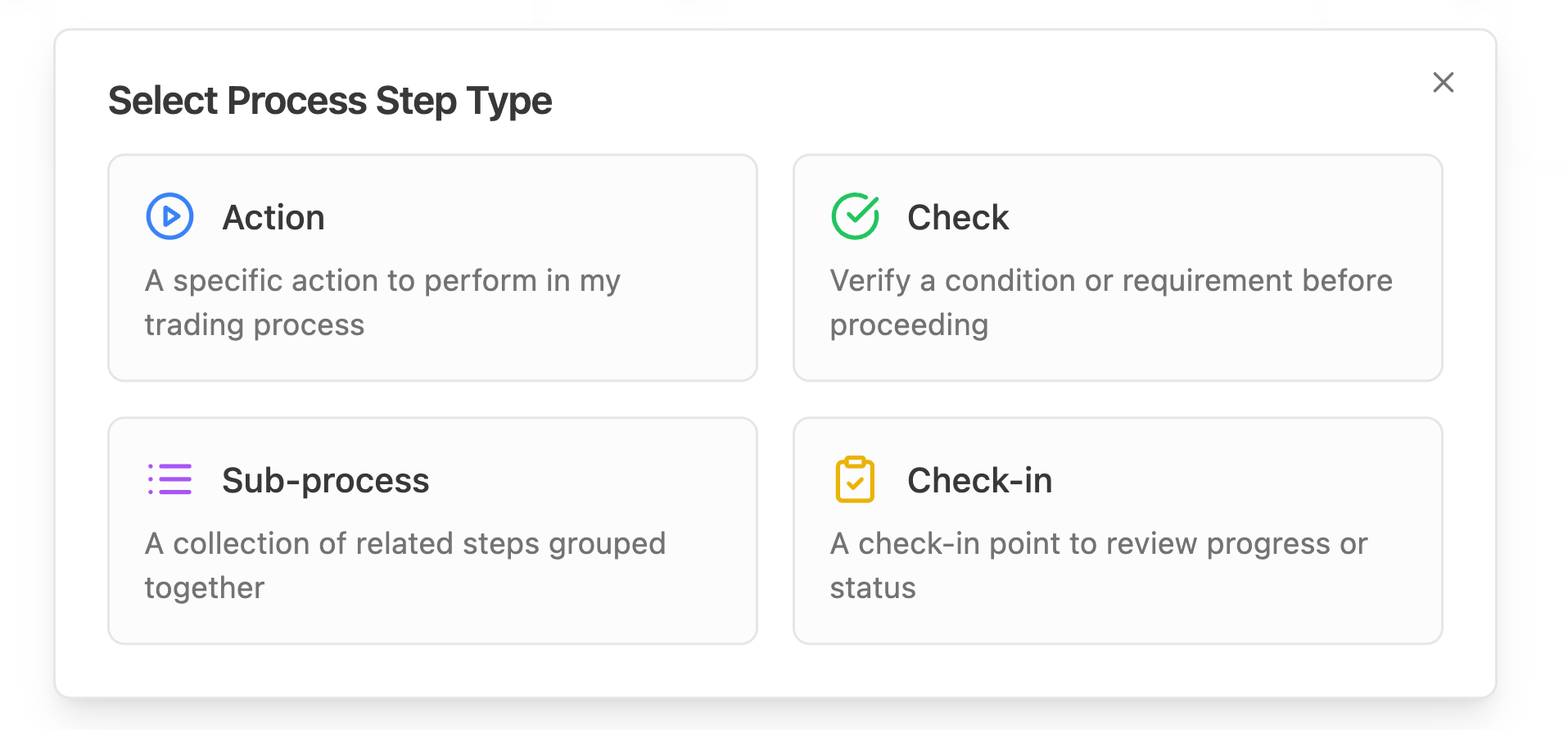
There are four step types, chosen in Select Process Step Type.
Action. Do something. Actions can link to one or more view states, so completing the step opens the screen you need. This is what makes a process navigable rather than a list of instructions you follow manually.
Check. Verify a condition before continuing. Checks are the natural place for mandatory flags: confirm the account is flat, confirm the news calendar is clear, confirm you slept.
Sub-process. A group with its own sub-steps, added with Add Sub-step. Use this to keep the top level readable when one phase of the morning has six parts.
Check-in. Runs one of your check-in forms when the step executes. Select which one by name. This is how a readiness form becomes part of the routine instead of something you remember to open.
Linking steps to screens
Action steps can carry an ordered list of view states, chosen from the screens available in your workspace. Typical choices are the import screen, the dashboard, Rigor, the trainer, the calendar, notes, todos, the report builder, and the app map.
Two things follow from that.
First, the step becomes one click instead of a hunt. Selecting the step in the process navigation takes you to the screen the step is about.
Second, while a process is incomplete the sidebar can narrow itself to only the screens the current step needs. The toggle at the bottom of the sidebar switches between Process features and All features. That is deliberate tunnel vision: fewer choices in the morning means fewer opportunities to drift.
If a linked screen is not included in your plan, it appears as restricted rather than disappearing, so the step still makes sense.